
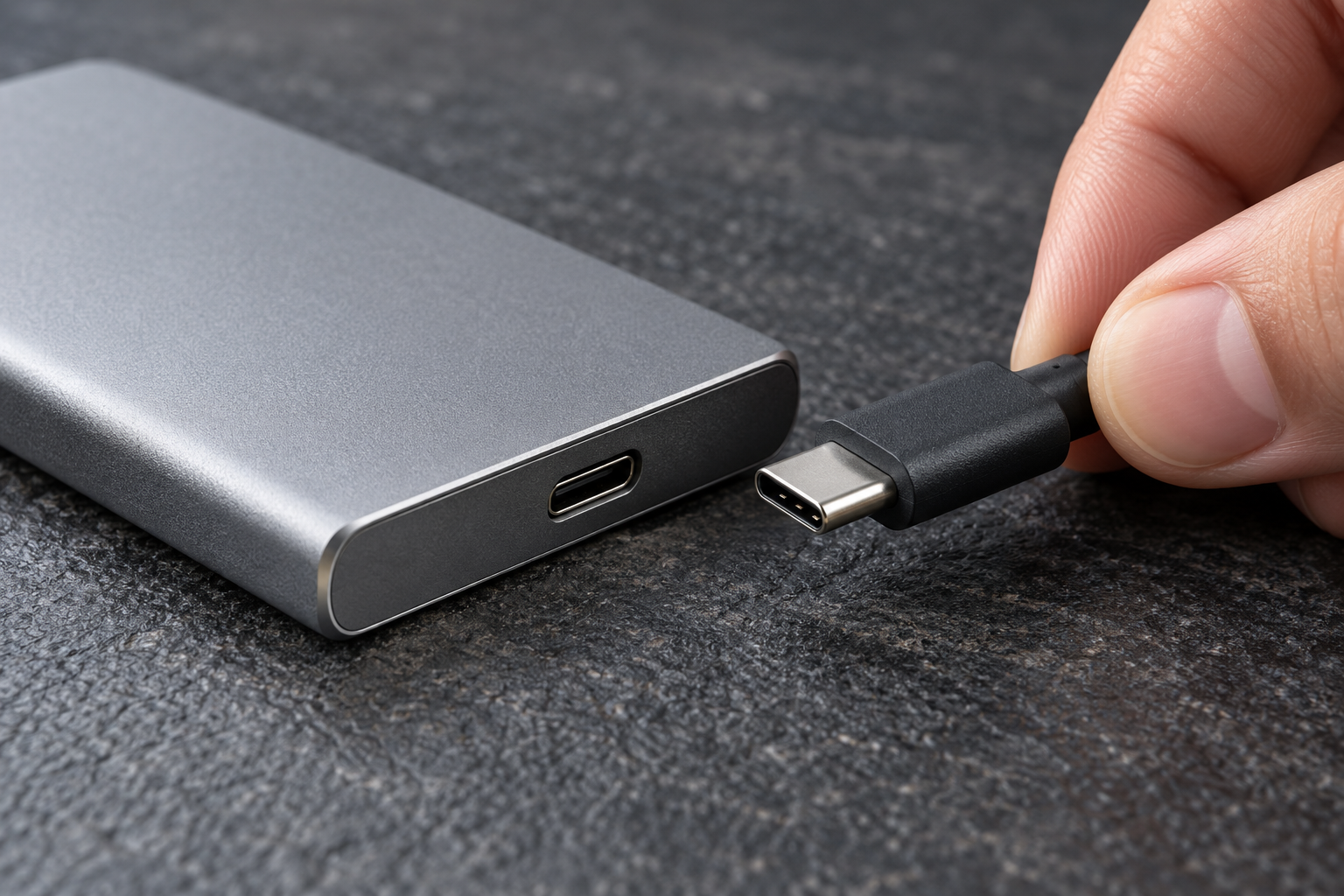
Two portable SSDs can use the same small connector while offering very different transfer capabilities. Buying the faster-looking drive will not automatically make your computer copy files at the number printed on its box. The computer port and cable are part of that connection too.
Before comparing products, identify the computer and the files the drive will serve. An SSD used to carry documents between machines has different requirements from one used for large video projects. A short compatibility check can prevent both an unsuitable purchase and spending on performance your setup cannot use.
Find the specification for your actual port
Look up the manufacturer’s documentation for the exact computer model. Identify which port you intend to use and its supported data connection. Do not assume that every similarly shaped port on the same machine has identical capabilities.
USB-C describes a connector type. It does not, by itself, tell you whether a port supports a particular USB data rate or another protocol. Read the accompanying specification rather than using the shape as a speed rating. If the manual is unclear, ask the manufacturer about the specific port.
Keep a note of that answer beside your shortlist. A compatible drive can still operate below its advertised maximum when the computer offers a slower shared connection. Compare the drive’s requirements with what the computer actually supplies.
Include the cable in the comparison
A cable that fits is not necessarily a cable with the required data capability. Check what is included with the drive and whether it supports the connection you intend to use. A spare cable bought mainly for charging may be a poor substitute for a suitable data cable.
Think about adapters and docks as part of the path. Read their specifications as well. If your normal setup involves a dock, a buying decision based only on a direct connection may miss the arrangement you will use every day.
Cable length and replacement availability matter practically. A very short lead may be tidy beside a laptop but awkward with a desktop computer under a desk. An obscure proprietary connector can complicate replacement. Inspect the whole connection before treating the drive as a finished solution.
Choose capacity from a real folder
Check how much space the files you want to move currently occupy. Add the other work you expect to keep on the drive and leave room for growth and temporary copies. Avoid basing the choice solely on the largest capacity you can afford.
For example, someone carrying one current project can separate that requirement from an archive of completed projects. Combining both jobs may justify more space, but it should be a deliberate decision. Write down what will stay on the computer and what will move elsewhere.
A marketed capacity and the space reported by an operating system can differ because of measurement conventions and formatting. Check usable-space information for the product rather than assuming every advertised unit will appear identically in your file browser.
Read speed claims as conditions
A headline figure is usually presented as an upper performance claim, not a promise for every copy operation. Look for the conditions behind it: the host connection, file type, workload, and whether the figure concerns reading or writing.
If your work involves long transfers, seek testing that resembles long transfers. If it involves many small files, a demonstration using one large file may not answer your question. A review should describe its method clearly enough for you to judge that relevance.
You do not need the highest specification for every task. Compare the expected benefit with the time you actually spend transferring files. Keep enough budget for a suitable cable and a separate backup instead of spending everything on a speed tier you cannot use.
Check the software and physical details
Confirm the supported operating systems and file system. A drive used between Windows and Mac computers needs a format both can use for the intended task. Any bundled password or encryption software should also work on the machines where you need access.
Formatting can erase existing files, so preserve them elsewhere before changing a drive’s format. Check the relevant operating-system instructions rather than experimenting with the only copy of a project.
For travel, consider cable storage, protection for the connector, warranty terms, and the conditions attached to any durability claim. A compact enclosure does not remove the need to protect the files inside it.
Decide where the second copy will live
Moving your only copy onto an external SSD creates external storage; it does not create a backup. Plan a separate copy and confirm you can restore something from it. Disconnect removable backup media when it is not in use, following the backup system’s instructions.
Your final shortlist should explain three things plainly: why the drive connects correctly, why its capacity fits the job, and where important data remains protected if that drive fails or disappears.